
You’re planning a migration. You read that you should lower your TTL to 300 seconds or less a day or two in advance so DNS changes propagate quickly when you flip the switch. Smart move. Textbook advice.
So you open a support ticket. You explain what you need. You wait.
Twenty-four hours later, the ticket is still open with a canned response about how DNS propagation can take “24 to 72 hours.” The agent hasn’t touched your TTL. They may not even know what TTL is.
You follow up. Another boilerplate reply. You escalate. Finally — on the third contact, now past the window where lowering the TTL would have actually helped — someone edits the record. With the wrong value. Or the right value on the wrong record.
This is not an unusual story. It plays out constantly, across hosts at every price point, and it has real consequences: slow propagation during migrations, extended downtime windows, and email disruptions that could have been avoided entirely with a correctly configured TTL set a day in advance.

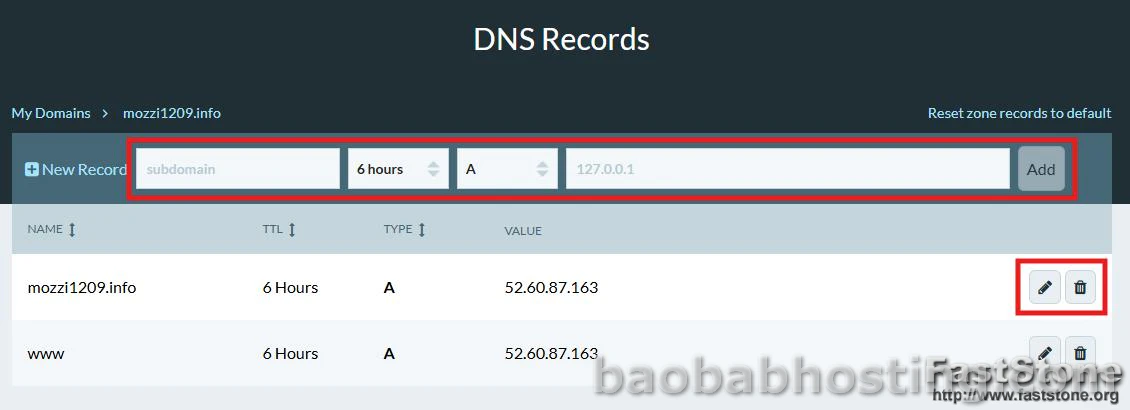
TTL controls live inside your DNS management panel — if your host gives you access to one at all.
What TTL Actually Is (And Why It Matters More Than Hosts Admit)
TTL, or Time to Live, is a value attached to every DNS record that tells resolvers — the servers that translate domain names into IP addresses — how long to cache that record before checking for a fresh copy. It’s measured in seconds.
A TTL of 86400 means resolvers will cache your record for 24 hours before re-querying. A TTL of 300 means they cache it for 5 minutes. A TTL of 3600 — the most common default — means one hour.
Under normal operating conditions, a high TTL is fine and actually beneficial: it reduces DNS query load and speeds up resolution for end users because their ISP’s resolver already has the answer cached. The problem arises the moment you need to change something.
When you update a DNS record — an A record pointing to a new server IP, an MX record pointing to a new mail provider, a CNAME for a new subdomain — the world doesn’t instantly know. Every resolver that cached your old record has to wait out its TTL before it asks again. If your TTL is 86400 and you just changed your A record, some users may be hitting your old server for up to 24 hours after the change. Their ISP cached the old answer and won’t check again until the TTL expires.
The migration playbook: Lower your TTL to 300 seconds (5 minutes) at least 24–48 hours before any planned DNS change. This ensures the low TTL propagates before you need it. Make your change. Verify propagation. Then raise your TTL back to 3600 or higher. Most hosts either don’t tell you this or make it impossible to execute smoothly.

High TTL values during a migration mean some users will reach your old server for hours — or a full day — after you’ve made the switch.
The Five Ways Hosts Mishandle TTL
1. They Hide the Controls
Many hosting control panels expose DNS management in a simplified form that deliberately omits TTL fields. You can see your A record pointing to your server’s IP. You cannot see or change the TTL. It might be 3600. It might be 86400. You genuinely have no way to know without running a dig query from the command line or using an external tool.
This isn’t a technical limitation — it’s a UI decision. The field exists in the underlying DNS system. The host chose not to surface it. Whether that’s a cost-reduction move (fewer confused support tickets about TTL) or a retention mechanism (migrations are messier with high TTLs) depends on how charitable you’re feeling about the host’s intentions.
2. They Override Your Values Silently
Some hosts — particularly those running proprietary DNS infrastructure — will accept a TTL value you enter, confirm the change, and then quietly override it with their system default on the next sync cycle. You set 300. It shows 300. You check 48 hours later with dig and find 3600 or 86400. No notification. No error. The change just didn’t stick.
This is particularly common on hosts that manage DNS through Cloudflare’s infrastructure without giving you direct Cloudflare access — they’re using an API layer that may or may not honor custom TTL inputs depending on the plan tier they’re operating under.
3. They Lock Records Entirely
Some hosts lock specific DNS records — particularly A records pointing to their servers and MX records tied to their email infrastructure — so that customers can’t modify them at all. The rationale is “preventing accidental misconfiguration.” The practical effect is that you cannot lower your TTL before a migration without opening a support ticket and arguing your case to someone who may not understand why you’re asking.

The support ticket approach to TTL management works in theory. In practice, you’re often waiting past the window where the change would have mattered.
4. Their Support Staff Don’t Know What TTL Is
This one is uncomfortable to say plainly, but it’s accurate: first-tier hosting support is frequently staffed by people following scripts who have limited technical depth. TTL is not a concept that appears in most support scripts. When you open a ticket asking to lower your TTL to 300 before a migration, there’s a meaningful probability the agent will interpret this as “customer is worried about DNS propagation” and respond with a generic explanation of propagation timelines — without touching the actual record.
This isn’t exclusively the agent’s fault. It’s a staffing and training problem at the host level. But you’re the one who ends up with a 24-hour propagation window during a migration that could have been 5 minutes.
5. They Apply Changes to the Wrong Record or Zone
When a technically competent agent does handle the request, a different problem emerges: they apply the TTL change to the wrong record. You asked for the A record TTL. They changed the SOA (Start of Authority) record TTL. Or they changed the TTL on a CNAME that had nothing to do with your migration. Or they changed it in a secondary zone that isn’t actually authoritative for your domain.
Each of these errors is invisible until you run dig +short yourdomain.com and check — which most customers don’t know to do.

Running dig against your domain is the only reliable way to verify what TTL is actually being served — not what your host’s panel displays.
Why Hosts Have Limited Incentive to Fix This
TTL mismanagement during migrations has a side effect that benefits hosting companies in a specific way: it extends your transition period. If propagation takes 24 hours instead of 5 minutes because your TTL was never lowered, you’re technically still “on” the old host for that entire window. Traffic is still hitting their server. You may encounter enough friction during the migration that you reconsider leaving. The migration may appear to fail, prompting a support call that gives the host another retention touchpoint.
None of this requires any deliberate action on the host’s part. The result emerges naturally from under-trained support staff, inaccessible DNS controls, and default TTL values set high to reduce infrastructure load. The incentive to fix it, however, is genuinely weak — because fixing it primarily benefits customers who are actively trying to leave.
The honest picture: A host with clean, accessible TTL controls and well-trained DNS support staff is one that’s comfortable with easy outbound migrations. The fact that so many hosts have neither is not entirely coincidental.
TTL Values: A Practical Reference
| TTL Value | Cache Duration | Best Used For |
|---|---|---|
60 |
1 minute | Active failover scenarios, load balancing changes — use sparingly, high query volume |
300 |
5 minutes | Pre-migration window (24–48 hrs before any planned DNS change) |
900 |
15 minutes | Sites that change DNS occasionally but not on a strict migration schedule |
3600 |
1 hour | Standard default — good balance of propagation speed and resolver cache efficiency |
86400 |
24 hours | Stable, long-term records that almost never change (e.g. parked domains) |

TTL is a lever, not a setting you configure once and forget. The right value depends on whether a change is imminent.
How to Actually Verify Your TTL — Without Trusting Your Host’s Panel
Your hosting control panel shows you what TTL value is stored in its database. That is not the same thing as what TTL is being served to the world. Here’s how to check the real value:
Using dig (Linux / macOS / WSL)
Run the following, replacing yourdomain.com with your actual domain:
dig A yourdomain.com +noall +answer
The output will look something like:
yourdomain.com. 3600 IN A 203.0.113.42
That middle number — 3600 in this example — is the TTL currently being served. If you changed it to 300 an hour ago and it still shows 3600, the change either hasn’t propagated yet or your host silently overrode it.
Using an Online Tool
If you don’t have command-line access, DNSChecker.org and WhatsMyDNS.net will show you what TTL different resolvers around the world are serving for your records. Run your domain through these tools after making any TTL change to confirm it actually stuck.

External DNS checking tools show what the world actually sees — not what your host’s panel claims to have saved.
Video: TTL and DNS Propagation Explained
Hosts That Handle TTL Correctly (And What That Looks Like)
The difference between a host with good DNS management and a bad one is concrete and visible within about two minutes of logging in.
What good looks like: You can see TTL values for every record in your DNS panel. You can edit them without opening a support ticket. Changes reflect in dig output within a few minutes. There are no hidden overrides. If you’re running through Cloudflare, you have direct Cloudflare access — not a stripped-down proxy layer.
What bad looks like: TTL fields are absent from the DNS editor. Records are locked. Support tickets for TTL changes go to first-tier agents who respond with propagation boilerplate. Changes either don’t apply or silently revert.
Cloudflare (used directly, not through a host’s integration layer) is the gold standard here — their DNS is among the fastest propagating in the world and their TTL controls are fully exposed in the dashboard. Hosts that give you genuine Cloudflare access as your authoritative DNS — not just a Cloudflare CDN integration — handle TTL correctly almost by definition.
Name-server-level control is the cleanest solution: point your domain’s nameservers to Cloudflare directly and manage all DNS yourself, entirely outside of your host’s control panel. This takes your host’s DNS team out of the equation entirely.
Long-term fix: Use Cloudflare as your authoritative DNS, pointed to via nameserver delegation at your registrar. Your host handles hosting. Cloudflare handles DNS. TTL is under your direct control, changes propagate in seconds to minutes, and no support ticket is ever required for a record edit.
The Migration Pre-Flight Checklist for TTL
Use this every time you’re planning a server migration, email provider change, or any other DNS-dependent cutover:
- Check your current TTL values via
digor DNSChecker.org — not your host’s panel. Know the baseline. - 48 hours before the cutover: Lower all relevant record TTLs to 300 seconds. Verify the change propagated with a second
digcheck a few minutes later. - At cutover: Make the DNS change (new A record IP, new MX, etc.). Propagation should now complete within 5–10 minutes for most resolvers.
- Verify from multiple locations using DNSChecker.org or WhatsMyDNS.net. Confirm the new records are being served globally.
- After 24 hours: Raise your TTL back to 3600 or your preferred stable value. Don’t leave it at 300 permanently — it adds unnecessary query load and marginally slows initial resolution for cold visitors.
This five-step TTL checklist before any migration can mean the difference between a 5-minute cutover and a 24-hour propagation window.
TTL at a Glance
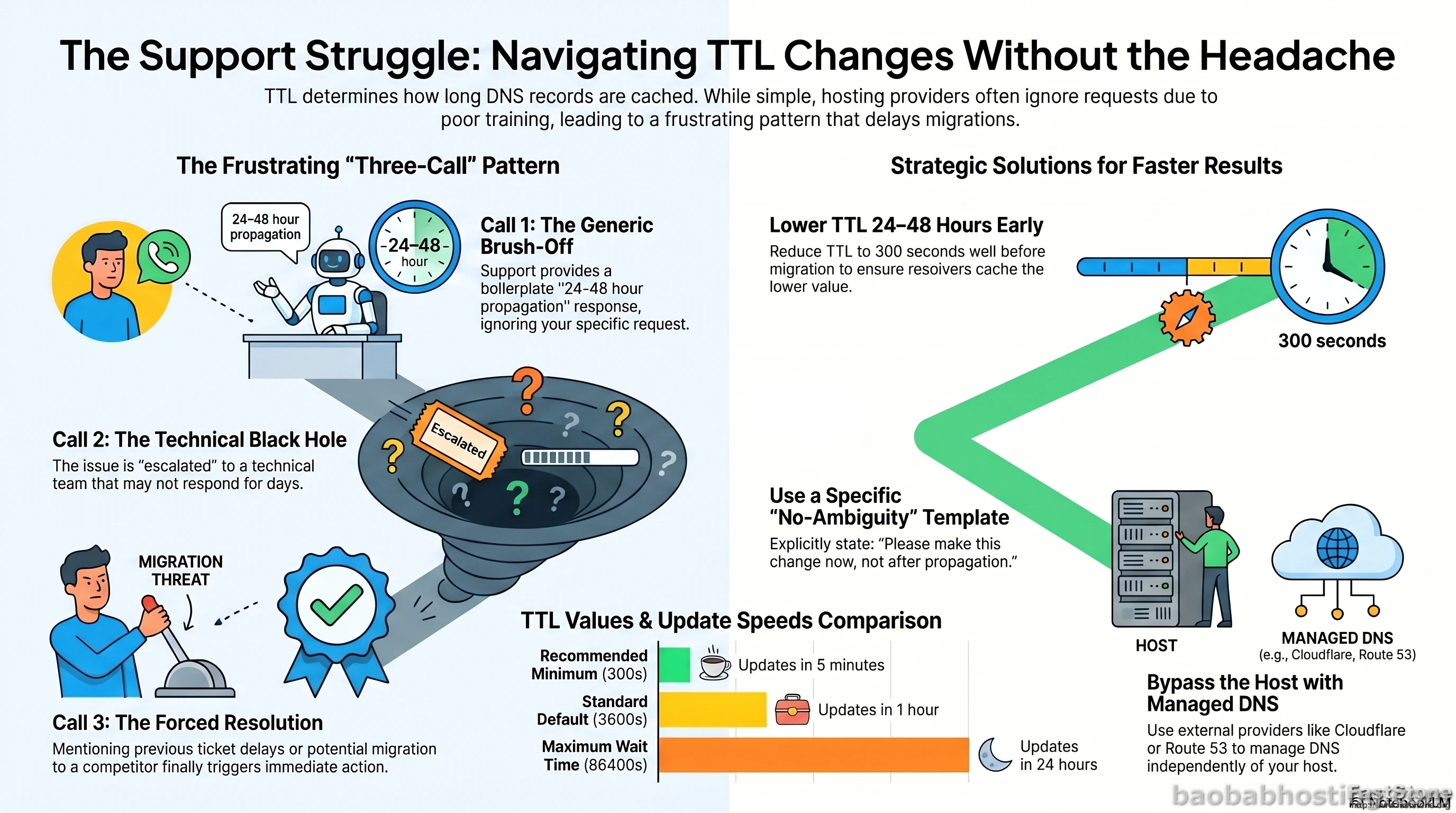
Save this before your next migration. The five-minute TTL window is the difference between a clean cutover and an all-night troubleshooting session.
The Bottom Line
TTL is a fundamental DNS concept that every hosting support team should understand and every DNS control panel should expose clearly. The fact that so many don’t — and that changing a TTL value still requires three support contacts and an escalation at a distressing number of hosts — is a structural failure of the hosting industry’s customer-first rhetoric.
The solution isn’t to file better tickets or be more patient. It’s to take DNS management out of your host’s hands entirely and run it through a provider for whom DNS is a core product, not an afterthought bolted to a cPanel instance. Cloudflare’s free tier handles this for most sites. The setup takes 20 minutes.
After that, your TTL is yours. No tickets. No escalations. No propagation windows that were entirely avoidable.